From Notebook Chaos to Production Calm: Git Habits for Grads
Preface: Why Your CS or Data Science Degree Left You Under-armed
Most universities still hand you a Jupyter notebook and call it "software engineering" or "data science", often overlooking how that work can be effectively shared, versioned, and reliably reproduced. Notebooks are fantastic for exploration and rapid prototyping, but try running a git diff on a .ipynb file – you'll find yourself deciphering a complex JSON structure, making meaningful version tracking difficult. Critical skills like robust version control with Git, writing repeatable tests, and establishing deployable project structures rarely get the spotlight they deserve in academia. Yet, these are precisely the practices that bridge the gap between classroom exercises and maintainable, production-ready code. I learned this the hard way.
The Day Two Weeks Vanished (Not Pleasant)
During an internship, I was deep in the zone, fueled by the success of a new project: a data pipeline feeding a FastAPI service. Endpoints were responsive, documentation was auto-generated via Swagger (if you're unfamiliar, check it out here – it's incredibly useful). I kept telling myself I'd push my changes to the remote repository soon, just after tidying up a few more handlers and modules. Then, disaster struck. The laptop fan whirred violently, the screen went black, and my machine refused to boot. No recent push, no separate branch, no cloud backup. 🎬 The result? A fresh OS install and two painstaking weeks spent reconstructing my work entirely from memory.
Lesson #1: If It Isn't On a Remote, It Doesn't Exist.
(This title reflects the painful lesson learned above. The following points cover the essential habits *before* you push, ensuring what you push is valuable.)
1. Commit Like Future-You is Debugging at 2 a.m.
- One Logical Change Per Commit: Keep commits small and focused. This makes reviewing easier (for yourself and others) and reverting changes trivial if something goes wrong.
- Write Clear Commit Messages: Use a consistent format. A simple, effective one is:
: – feat: add user authentication endpoint – secures access to profile datafix: correct calculation error in reporting module – prevents negative totalsrefactor: simplify database query logic – improves performance by 15% - Link to Issues/Tickets: If using a tracker like Jira or GitHub Issues, include the ID (e.g.,
#123orPROJ-456) in your commit message. This automatically links your code changes to the requirement or bug report. - Squash Merges (Carefully): Using squash-and-merge when completing a feature branch can keep your main branch history clean and linear. However, never squash commits *during* an active code review. The individual commits form the narrative of your development process and the review conversation.
2. Push Early, Push Often (The Cloud is Your Safety Net)
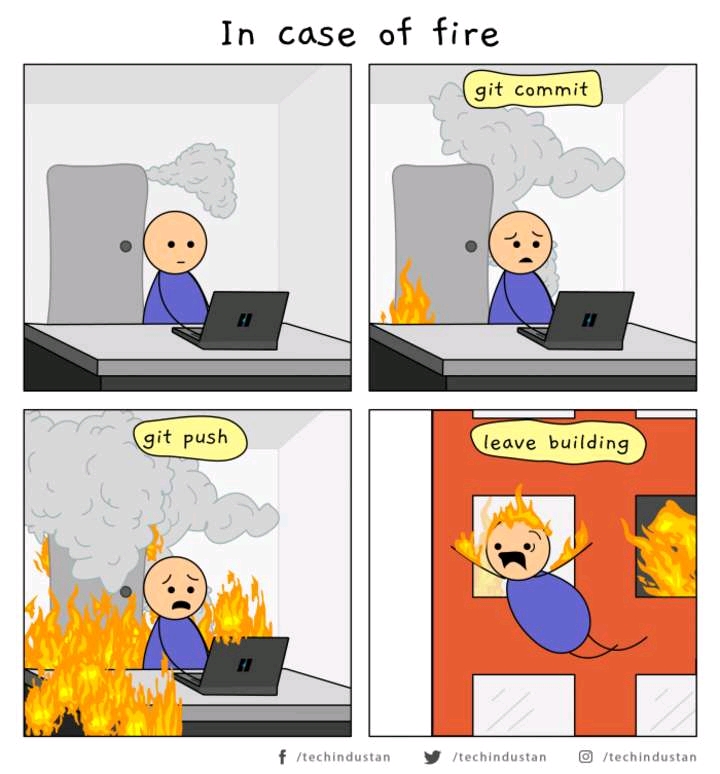
Treat git push like hitting "Save" in the cloud. Don't wait until everything is "perfect."
- Finished a small, logical piece of work? Push it!
- Stepping away for lunch or a meeting? Push it!
- Trying out an idea on a separate branch? Push the branch!
- Fixed a tiny typo in the README? Push it! (Okay, maybe less critical, but it reinforces the habit and keeps the remote truly up-to-date).
Pushing frequently triggers your Continuous Integration (CI) pipeline (if configured), giving you immediate feedback on tests and builds. It's your best defense against hardware failure, accidental deletions, or the dreaded blue screen of death.
3. Branch Out: The Superpower of Parallel Universes (aka Branching)
Imagine you want to try a new idea, fix a bug, or add a feature. If you do this directly on your main codebase (main or master), and something goes wrong, untangling it can be a nightmare. This is where Git branches shine – they are like creating a parallel universe for your code.
Why Branch?
- Isolation: Work on features or fixes without affecting the stable main codebase. If your experiment fails, you just discard the branch – no harm done to main.
- Collaboration: Multiple people can work on different features simultaneously on their own branches.
- Clear History: When a feature is complete, its branch can be merged back, often through a Pull/Merge Request, creating a clean, reviewable history point.
- Experimentation: Want to try a risky refactor or a completely new approach? Do it on a branch!
Common Branching Workflow:
- Stay Updated: Before starting new work, make sure your local main branch is up-to-date with the remote:
git checkout main git pull origin main - Create & Switch: Create a new branch for your task (e.g.,
feature/user-loginorbugfix/payment-error):git checkout -b feature/user-login # This is a shortcut for: # git branch feature/user-login # git checkout feature/user-login # Or using the newer 'switch' command: # git switch -c feature/user-login - Work & Commit: Make your changes, commit them (following Lesson #1!) to your feature branch.
- Push Your Branch: Regularly push your branch to the remote (following Lesson #2!):
git push origin feature/user-login - Iterate: Continue working, committing, and pushing to your branch.
- Merge (Often via Pull/Merge Request): Once your feature is complete and reviewed (if on a team), it gets merged back into the main branch.
Branches are cheap and easy in Git. Don't be afraid to use them for everything – even a tiny change is often best done on a branch. This habit will save you countless headaches and make collaboration a breeze.
4. The Inevitable Merge: Understanding and Resolving Conflicts
So, you've been working diligently on your feature branch, and main has also seen some action. Now it's time to bring your changes back into main. This is done via a git merge. Most of the time, Git is smart enough to combine the changes automatically. But sometimes, Git gets confused – this is a merge conflict.
What is a Merge Conflict?
A merge conflict occurs when Git can't automatically resolve differences in code between two branches that are being merged. This typically happens when the same lines of code were changed in different ways on both branches since they diverged.
Don't Panic! Conflicts are Normal
Every developer encounters merge conflicts. The key is to understand how to resolve them calmly.
The Conflict Resolution Dance:
- Initiate the Merge: First, ensure your current branch is the one you want to merge into (e.g.,
main), and it's up-to-date. Then, merge your feature branch:git checkout main git pull origin main # Ensure main is up-to-date git merge feature/user-login - Identify Conflicts: If there are conflicts, Git will tell you:
Auto-merging src/my_awesome_service/api/users.py
CONFLICT (content): Merge conflict in src/my_awesome_service/api/users.py
Automatic merge failed; fix conflicts and then commit the result.
git statuswill also show you the unmerged paths. - Open the Conflicted File(s): Inside the file(s) Git flagged, you'll see markers like this:
<<<<<<< HEAD # Code from your current branch (e.g., main) def get_user_profile(user_id: int): ======= # Code from the branch being merged (e.g., feature/user-login) def retrieve_user_profile_details(user_id: int, include_email: bool = False): >>>>>>> feature/user-login - Resolve the Conflict: This is the human part. You need to:
- Look at the changes between
<<<<<<< HEADand=======(what's currently inmain). - Look at the changes between
=======and>>>>>>> your-branch-name(what's in your feature branch). - Decide what the code should look like. This might mean keeping one version, the other, or a combination of both.
- Delete the Git markers (
<<<<<<<,=======,>>>>>>>) after you've made your edits.
- Look at the changes between
- Stage the Resolved File: Once you're happy with the merged code in the file:
git add src/my_awesome_service/api/users.py - Commit the Merge: After resolving all conflicts and staging all conflicted files:
Git will often pre-populate a commit message like "Merge branch 'feature/user-login'". You can usually just save and close this message. If you initiated the merge viagit commitgit pull, you might just need togit addandgit commit(orgit rebase --continueif you pulled with rebase).
Tools Can Help:
Many IDEs (like VS Code) have built-in merge conflict resolution tools that provide a side-by-side view, making it easier to see the differences and choose which changes to accept.
Understanding branching and how to handle merge conflicts are fundamental Git skills. Mastering them will make you a more confident and effective developer, especially when working in a team.
5. Master .gitignore: Your Repo's Gatekeeper
Your Git repository should only track files essential for building and running your project – primarily source code and configuration. Everything else (generated files, environment secrets, large data, dependencies) should be explicitly ignored using a .gitignore file.
# Byte-compiled files and caches
__pycache__/
*.pyc
*.pyo
*.pyd
*.so
*.swp # Vim swap files

# Secrets / Environment variables
# NEVER commit sensitive credentials!
.env
.env.*
*.env
!.env.example  # Often good to commit a template

# OS-specific files
.DS_Store
Thumbs.db
Desktop.ini

# IDE / Editor folders
.idea/
.vscode/
*.sublime-project
*.sublime-workspace
nbproject/ # NetBeans

# Virtual environment folders
venv/
.venv/
env/
.env/
*_env/
env.bak/
venv.bak/

# Build artifacts & distribution files
dist/
build/
*.egg-info/
wheels/
*.tar.gz
*.whl
*.jar
*.war

# Test & Coverage artifacts
.pytest_cache/
.coverage
.coverage.*
htmlcov/
nosetests.xml
coverage.xml
*.cover
.hypothesis/

# Data files (Generally avoid in Git - use other storage)
*.csv
*.tsv
*.json  # If large dataset, not small config
*.xml   # If large dataset, not small config
*.yaml  # If large dataset, not small config
*.parquet
*.hdf5
*.h5
*.pkl
*.pickle
*.joblib
data/     # Often contains large files
*.db
*.sqlite
*.sqlite3

# Logs & temporary files
*.log
logs/
*.tmp
*.temp

# Node dependencies (if using Node.js tools)
node_modules/
npm-debug.log*
yarn-debug.log*
yarn-error.log*

# Python Notebook Checkpoints
.ipynb_checkpoints/
Large binary files (like datasets, models, images, videos) don't belong directly in Git. They bloat the repository, make cloning slow, and don't diff well. Need them for reproducibility?
- Store them in dedicated object storage (AWS S3, Google Cloud Storage, Azure Blob Storage, MinIO).
- Use tools specifically designed for versioning large files alongside code, like DVC (Data Version Control) or Git LFS (Large File Storage). These tools store pointers in Git and manage the actual large files separately.
6. Quick-Start Checklist for New Grads
| Habit | Tooling Example | Payoff |
|---|---|---|
| Atomic commits, clear messages | Git CLI discipline, commitlint hooks | Easy history navigation, faster reviews, simple reverts |
| Push frequently to remote | Git remote (GitHub, GitLab, etc.), CI Server | Data safety net, rapid feedback loop, enables collaboration |
| Use branches for all work | git checkout -b, Pull/Merge Requests |
Isolation, experimentation safety, cleaner main history |
| Handle merge conflicts calmly | IDE merge tools, git status, manual editing |
Integrate work smoothly, avoid losing changes |
.gitignore non-source files |
Well-maintained .gitignore, DVC/LFS/Cloud Storage |
Lean repository, fast clones/pulls, clean diffs |
Final Word
Transitioning from academic projects to production code isn't about suddenly gaining years of experience overnight; it's about adopting professional habits. Commit small changes often. Push your work to the safety of a remote repository regularly. Branch out for every task. Learn to merge confidently. Keep your repository clean and focused on source code. These practices might feel like extra effort initially, but they quickly become second nature and save enormous amounts of time and stress down the line (take it from someone who learned the hard way!).
So, before you switch tabs or close this window, make it a habit:
git status # Check what you've changed
git add . # Stage relevant changes
git commit -m "docs: internalize lessons on production git habits" # Meaningful message!
git push origin your-branch-name # Push to the cloud!
Your future self, potentially debugging late at night or recovering from a hardware hiccup, will thank you. 🚀